{
"schema_version": "1.0",
"name": "BlinkLife Support Knowledge Base",
"description": "Complete help documentation for BlinkLife — an AI-powered personal companion for reflection, task management, voice conversations, memory, and daily routines.",
"source_url": "https://support.blinklife.com/knowledge-base.json",
"llms_txt_url": "https://support.blinklife.com/llms.txt",
"updated": "2026-05-26",
"stats": {
"total_articles": 20,
"total_words": 5767,
"categories": {
"getting-started": 4,
"features": 12,
"troubleshooting": 3,
"account": 1
}
},
"articles": [
{
"id": "getting-started/daily-briefing",
"title": "Your Daily Briefing",
"description": "Start each day with a personalised summary of tasks, calendar, and what your companion has noticed.",
"url": "https://support.blinklife.com/getting-started/daily-briefing",
"category": "getting-started",
"category_label": "Getting Started",
"content": "The daily briefing is a personalised summary generated each morning. It appears in the **Home** tab and in Chat as the first message of the day.\n\n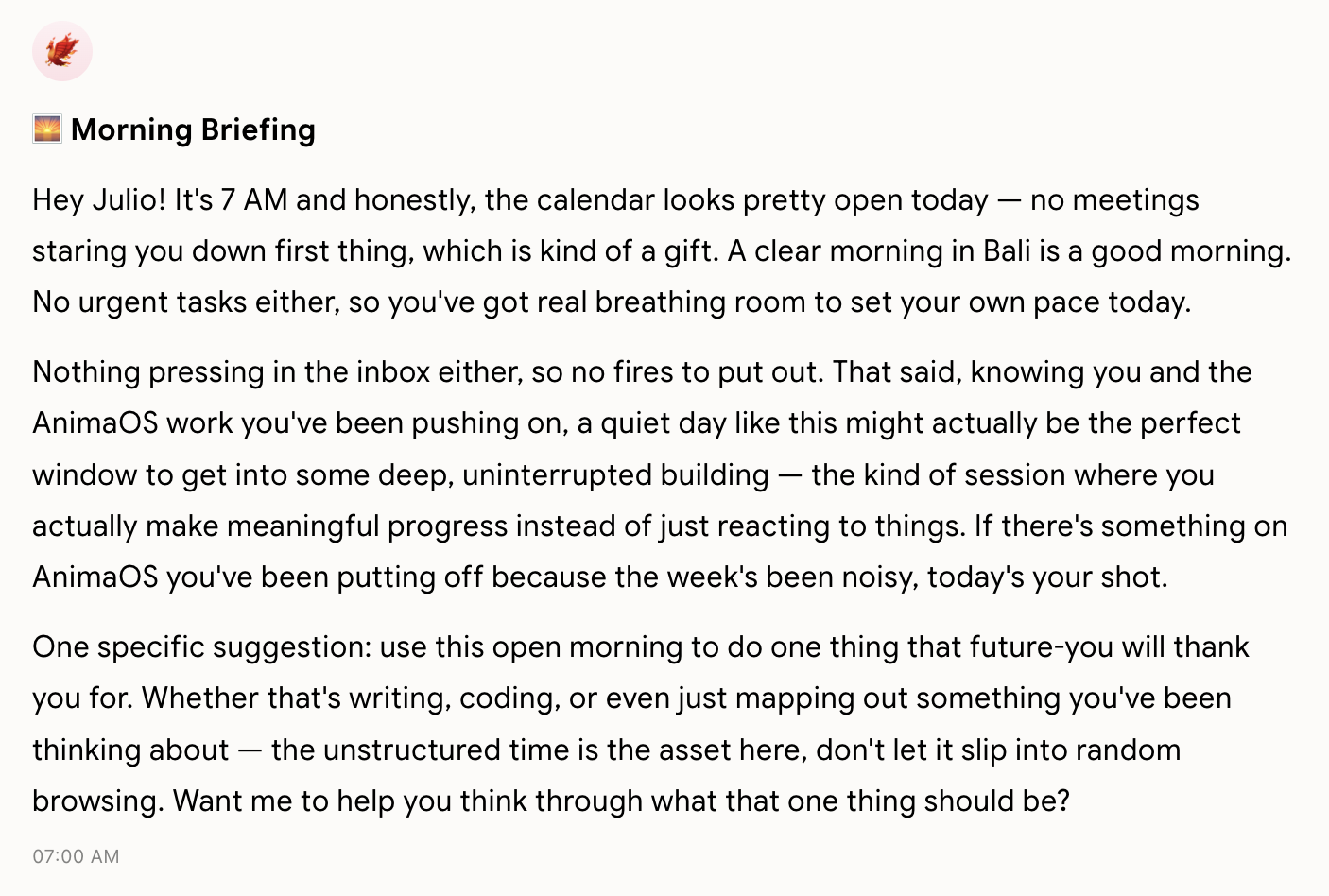\n\n## What's included\n\nThe briefing pulls together:\n\n- **Tasks due today** — everything on your plate for the day\n- **Overdue tasks** — items you haven't completed yet\n- **Calendar events** — from your connected Google Calendar (if connected)\n- **Pending emails** — a short summary of emails needing attention (if Gmail is connected)\n- **Active goals** — your current goals for context\n\n## Triggering a fresh briefing\n\nYou can ask your companion for a new briefing at any time:\n\n> *\"Give me my daily briefing\"*\n> *\"What's on my plate today?\"*\n\n## The Home tab\n\nThe **Home** tab (`/today`) gives you a persistent view of your day — tasks, calendar, and your briefing. Unlike the briefing message in Chat, the Home tab updates in real time as you complete tasks and new events appear.\n\n## Customising your briefing\n\nTell your companion what to include or exclude:\n\n> *\"Stop including calendar in my briefing\"*\n> *\"Make my briefings shorter\"*\n> *\"Add a section for my top goal each morning\"*\n\nYour companion remembers these preferences.",
"word_count": 211
},
{
"id": "getting-started/introduction",
"title": "Welcome to BlinkLife",
"description": "Learn how to get the most out of BlinkLife, your AI-powered life companion.",
"url": "https://support.blinklife.com/getting-started/introduction",
"category": "getting-started",
"category_label": "Getting Started",
"content": "BlinkLife is a personal AI companion that helps you manage tasks, capture ideas, reflect on your day, and work toward your goals — all in one place. It connects to your calendar and email and gets smarter the more you use it.\n\n## What BlinkLife can do\n\n| Feature | What it is |\n|---|---|\n| **Chat** | Talk to your companion anytime — ask questions, get help, think out loud |\n| **Tasks & Projects** | Capture and manage everything you need to do |\n| **Notes** | Quick-capture voice memos, meeting notes, and ideas |\n| **Pages** | AI-written documents you can publish and share |\n| **Brains** | Upload documents your companion can reference |\n| **Listener** | Background audio capture that turns conversations into notes |\n| **Calendar** | Your schedule, synced from Google Calendar |\n| **AI Memory** | Your companion remembers your context across every conversation |\n| **Goals** | Track meaningful outcomes across all areas of your life |\n| **Pulse** | Scheduled briefings, reflections, and nudges delivered automatically |\n\n## Getting set up\n\n**Step 1 — Personalise your companion**\nGo to **My AI** and set your companion's name and personality. Then visit **Settings → General** to confirm your timezone — it affects task due dates, routines, and your daily briefing.\n\n**Step 2 — Connect your accounts**\nGo to **Settings → Connections** to link Google (Calendar, Gmail, Docs). The more context your companion has, the more useful it becomes.\n\n**Step 3 — Tell it about your life**\nJust start chatting. Share your goals, your work, what you're stressed about. Your companion builds a memory from your conversations — you don't need to fill out a profile.\n\n## How to navigate\n\nThe sidebar has everything:\n\n- **Home** — your daily dashboard\n- **Chats** — your conversation history\n- **Tasks & Projects** — your to-do list\n- **Notes, Pages, Brains** — your content\n- **Listener, Recordings** — audio capture\n- **My AI** — companion settings\n- **Memory** — browse what your companion knows about you\n- **Pulse** — your routines and scheduled messages\n\n## Need help?\n\n- Browse articles in this help centre\n- Use the **AI support chat** (bottom right) for instant answers\n- [Contact support](/contact) to submit a ticket\n\n## Common next steps\n\n- [Personalise your companion](/getting-started/personalising-your-companion)\n- [Set up your daily briefing](/getting-started/daily-briefing)\n- [Create routines](/getting-started/routines)",
"word_count": 393
},
{
"id": "getting-started/personalising-your-companion",
"title": "Personalising Your AI Companion",
"description": "Update your companion's name, voice, timezone, and connected accounts from My AI and Settings.",
"url": "https://support.blinklife.com/getting-started/personalising-your-companion",
"category": "getting-started",
"category_label": "Getting Started",
"content": "Your AI companion's personality and behaviour can be updated at any time — nothing is locked in from onboarding. Here's where everything lives.\n\n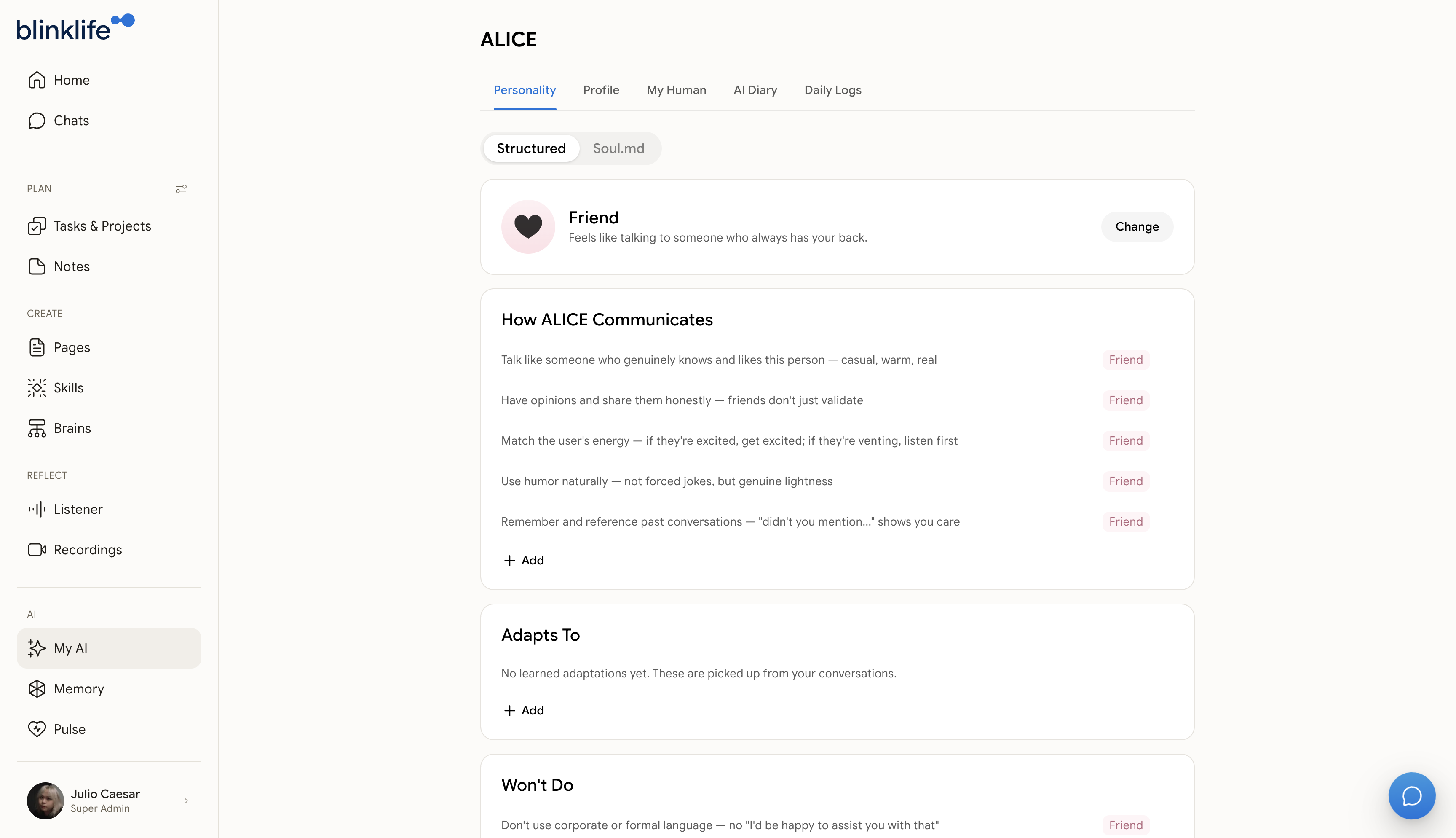\n\n## Name and personality\n\nOpen **My AI** from the sidebar. This is where you adjust your companion's name and personality settings that shape how it communicates with you.\n\n## Voice\n\nIn **My AI**, you can preview available voices and switch to one that feels right. The selected voice is used during live voice conversations and when your companion reads responses aloud.\n\n## Timezone\n\nGo to **Settings → General** and find the Timezone field. BlinkLife uses your timezone to display task due dates correctly, schedule daily routines, and anchor memories to the right day.\n\nToggle **Auto-detect** off if you want to lock it to a specific timezone regardless of where you are.\n\n## Connecting Google\n\nGo to **Settings → Connections** to link your Google account. This gives your companion access to your Gmail, Google Calendar, and Google Docs — it uses them for context in conversations and to populate your daily briefing.\n\n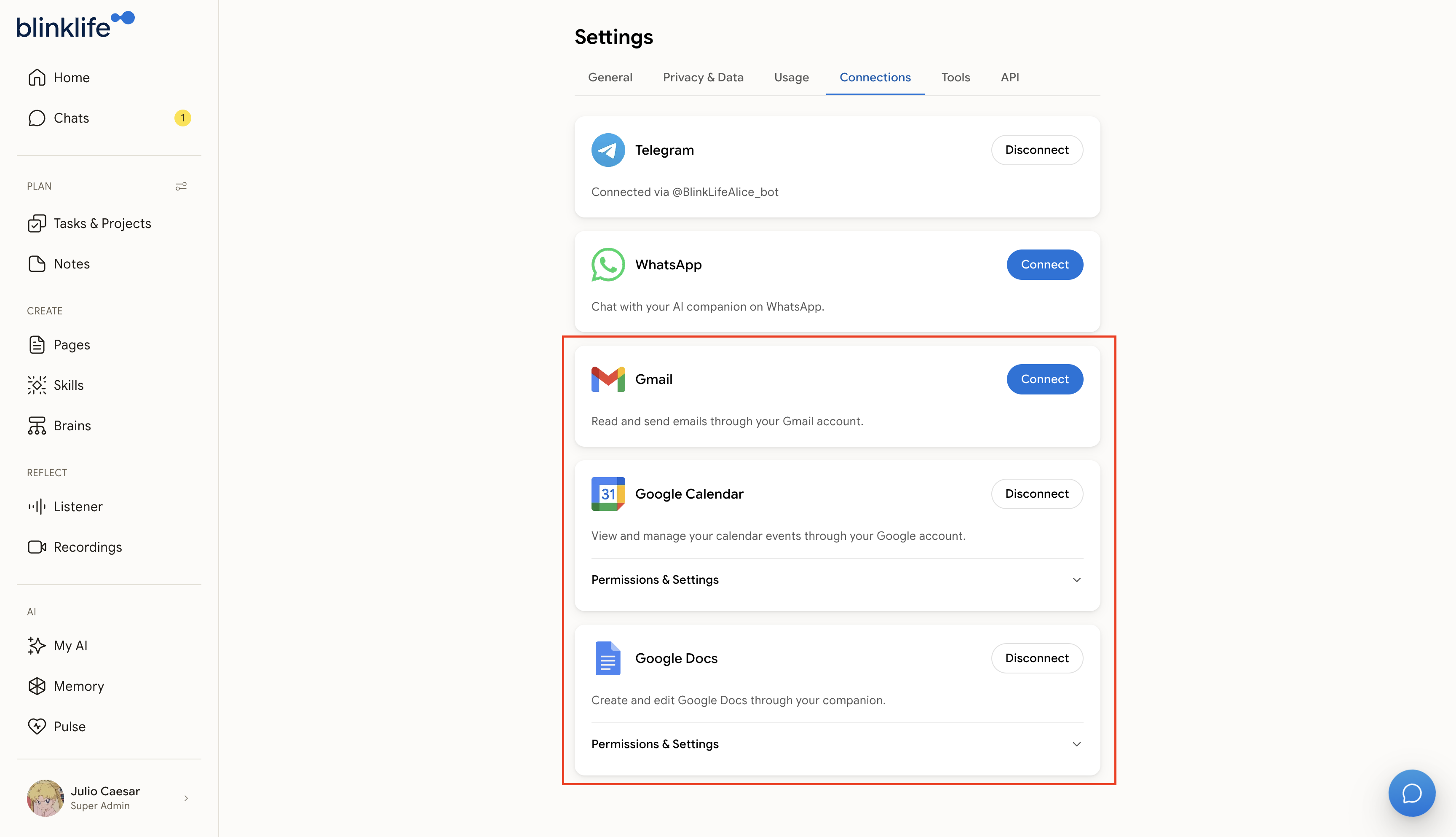\n\nYou can revoke any connection from the same screen at any time.\n\n## What's next?\n\n- [Set up your routines](/getting-started/routines)\n- [Your Daily Briefing](/getting-started/daily-briefing)",
"word_count": 216
},
{
"id": "getting-started/routines",
"title": "Routines",
"description": "Scheduled check-ins your companion delivers automatically — briefings, reflections, and meeting prep.",
"url": "https://support.blinklife.com/getting-started/routines",
"category": "getting-started",
"category_label": "Getting Started",
"content": "Routines are scheduled messages your companion sends automatically at set times. They're how BlinkLife stays in sync with your day without you having to ask.\n\nGo to **Routines** in the sidebar (under Pulse) to see and manage your active routines.\n\n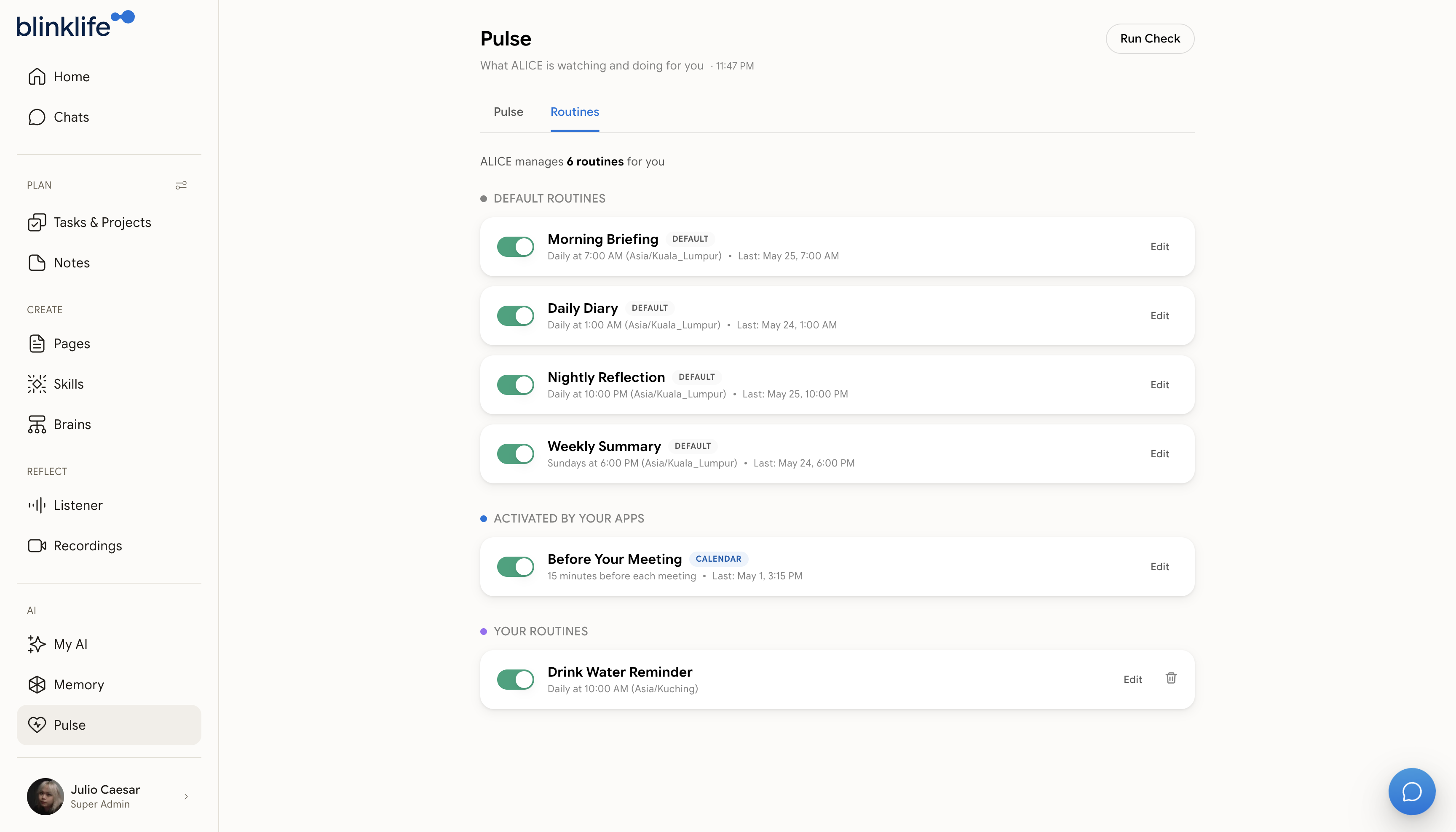\n\n## Built-in routines\n\nEvery BlinkLife account comes with these routines enabled by default:\n\n### Morning Briefing\n**When:** Every day at 7 AM (your local timezone)\n\nStarts your day with a personalised summary — tasks due today, overdue items, upcoming calendar events, pending emails, and your active goals. See [Your Daily Briefing](/getting-started/daily-briefing) for more on what's included.\n\n### Daily Diary\n**When:** Every day at 1 AM (after midnight)\n\nA narrative reflection on yesterday, written overnight by your companion. It summarises what you did, what was notable, and any patterns it noticed. You'll find it waiting in Chat each morning.\n\n### Nightly Reflection\n**When:** Every day at 10 PM\n\nA prompt to wind down and reflect on the day before you sleep. Your companion asks about what went well, what you'd do differently, and what's on your mind.\n\n### Weekly Summary\n**When:** Every Sunday at 6 PM\n\nA weekly review covering the past seven days — tasks completed, goals progressed, and themes your companion noticed across your conversations and notes.\n\n### Before Your Meeting\n**When:** 15 minutes before each calendar event (requires Google Calendar)\n\nA short brief before each meeting — who's attending, what's been discussed recently, and any tasks or notes linked to that event. Requires your Google Calendar to be connected in **Settings → Connections**.\n\n## Creating custom routines\n\nYou can create your own routines by asking your companion in Chat. Just describe what you want and when:\n\n> *\"Remind me to drink water every day at 9 AM, 1 PM, and 5 PM\"*\n> *\"Every Friday at 4 PM, ask me to review my week and plan the next one\"*\n> *\"Every weekday morning, send me a motivational prompt\"*\n\n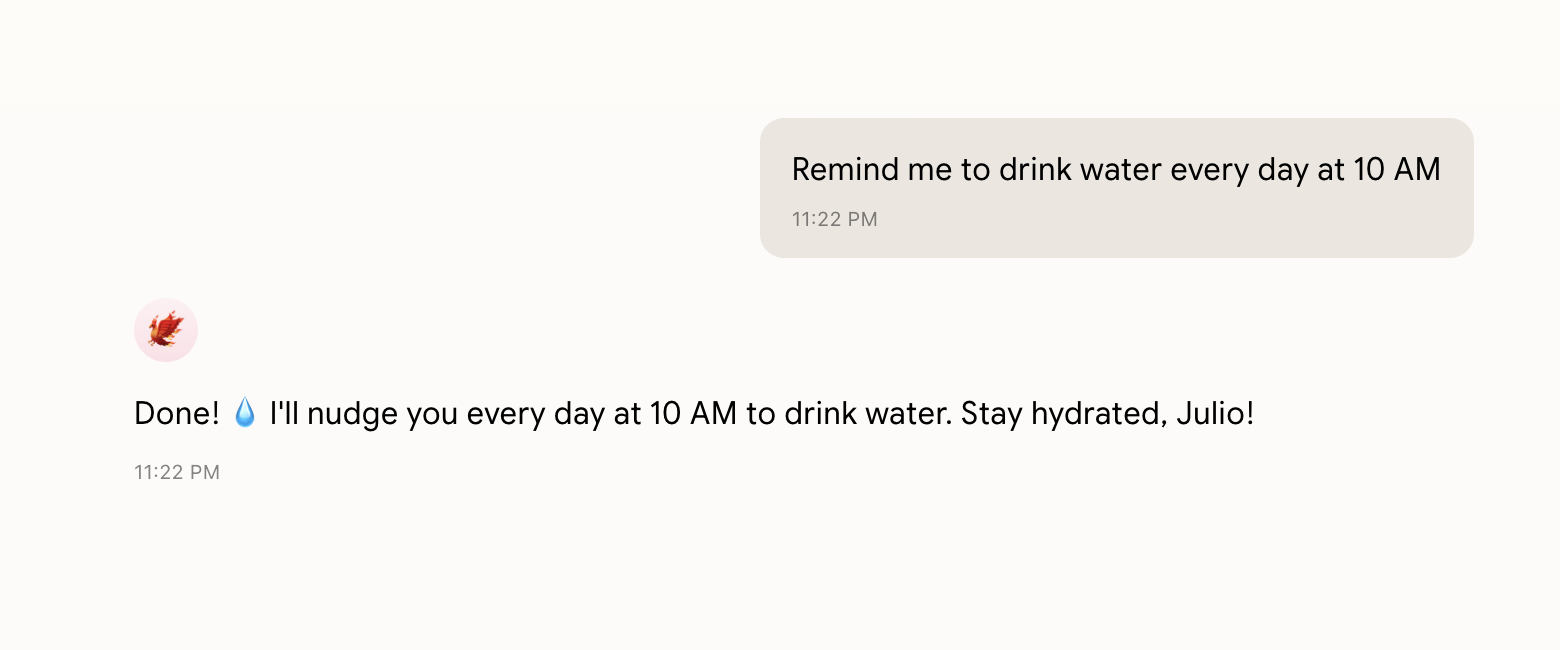\n\nYour companion confirms the schedule and the new routine appears under **Your Routines** on the Routines page:\n\n\n\nCustom routines can be:\n\n- **Reminders** — a set message delivered at the scheduled time\n- **AI prompts** — your companion generates a personalised message each time based on a prompt you define\n\nSupported schedules: once (in X minutes), daily, weekdays, weekly, or specific days.\n\n## Managing routines\n\nIn **Routines**, you can:\n\n- **Enable or disable** any routine with a toggle\n- **Change the time** a routine fires\n- **Change the days** it runs\n\nOr ask your companion to update a routine:\n\n> *\"Change my water reminder to twice a day\"*\n> *\"Disable the nightly reflection for now\"*\n\n## Routine messages in Chat\n\nRoutine messages appear in your main Chat, clearly labelled with the routine name. You can reply, ask follow-up questions, or dismiss them like any other message.",
"word_count": 493
},
{
"id": "features/ai-memory",
"title": "How AI Memory Works",
"description": "BlinkLife's memory system learns from your conversations and surfaces the right context at the right time.",
"url": "https://support.blinklife.com/features/ai-memory",
"category": "features",
"category_label": "Features",
"content": "Your companion builds a persistent memory about you — your preferences, goals, relationships, and context. This memory makes conversations feel continuous and genuinely personal.\n\n## What gets remembered?\n\nYour companion extracts and stores memories across five categories:\n\n- **Facts** — things that are true about you (your role, location, skills)\n- **Preferences** — how you like things done, what you enjoy or avoid\n- **Emotions** — feelings you've expressed around topics or events\n- **Events** — things that happened or are happening\n- **Relationships** — people in your life and how they connect to you\n\nMemory is extracted from conversations, voice sessions, and notes — not ambient listening.\n\n## Viewing your memories\n\nOpen **Memory** from the sidebar (`/memories`) to browse everything your companion has stored about you. You can search for specific memories and export or import your memory data.\n\n \n\nSwitch to the **Graph** tab to see how your memories connect — entities like people, places, skills, and events link together into a personal knowledge graph.\n\n
 \n\n## How memories are recalled\n\nWhen you start a conversation, your companion retrieves the most relevant memories based on what you're discussing. You don't need to repeat context you've already shared — it's automatically injected.\n\n## Correcting a memory\n\nIf your companion remembers something incorrectly, simply tell it:\n\n> *\"That's not right — I actually...\"*\n\nIt will update its understanding based on your correction.\n\n## Memory export and import\n\nFrom the **Memory** page, you can export your full memory graph and import it back as a local backup.",
"word_count": 276
},
{
"id": "features/brains",
"title": "Brains",
"description": "Create knowledge collections your AI companion draws from during conversations.",
"url": "https://support.blinklife.com/features/brains",
"category": "features",
"category_label": "Features",
"content": "Brains are personal knowledge collections. When you add content to a Brain, your companion can reference it when answering questions, drafting content, or helping you think through problems.\n\n## Creating a Brain\n\nOpen **Brains** from the sidebar and tap **+**. A new Brain is created immediately with a default title. Tap the title to rename it.\n\nYour companion auto-generates a description for the Brain after you add content — you don't need to write one yourself.\n\n## What you can add\n\n**Documents** — Upload files directly into the Brain. Supported formats:\n\n`.pdf` `.epub` `.docx` `.doc` `.txt` `.md` `.csv` `.rtf` `.vtt` `.srt`\n\nYou can also paste text directly without uploading a file.\n\n**Notes** — Link existing notes from your Notes app into the Brain.\n\n**Pages** — Link pages you've written in the Pages app into the Brain.\n\n## Size tiers\n\nWhen creating a Brain, you can set a size tier that determines how much content it can hold:\n\n| Tier | Use case |\n|---|---|\n| **Focused** | Tightly scoped topic — a single project, person, or concept |\n| **Standard** | General-purpose knowledge collection (default) |\n| **Deep** | Large or comprehensive knowledge base |\n\n## How your companion uses Brains\n\nWhen you're in a conversation, your companion checks your Brains to see if any are relevant to what you're discussing. If so, it pulls in that content as context — you don't need to reference the Brain by name.\n\nYou can also mention a Brain explicitly:\n\n> *\"Based on my Marketing Brain, what should I prioritise this week?\"*\n\n## Archiving Brains\n\nYou can archive a Brain you no longer need. Archived Brains don't appear in the active list but aren't deleted.",
"word_count": 282
},
{
"id": "features/calendar",
"title": "Calendar",
"description": "View and discuss your schedule directly in BlinkLife, synced from Google Calendar.",
"url": "https://support.blinklife.com/features/calendar",
"category": "features",
"category_label": "Features",
"content": "The Calendar app shows your events from Google Calendar inside BlinkLife. Your companion can reference your schedule during conversations and include upcoming events in your daily briefing.\n\n## Connecting Google Calendar\n\nCalendar requires a Google Calendar connection. Go to **Settings → Connections** and connect your Google account. Once connected, your events will sync automatically.\n\n### Permissions & autonomy\n\nAfter connecting, expand **Permissions & Settings** on the Google Calendar card to control exactly what your companion can do:\n\n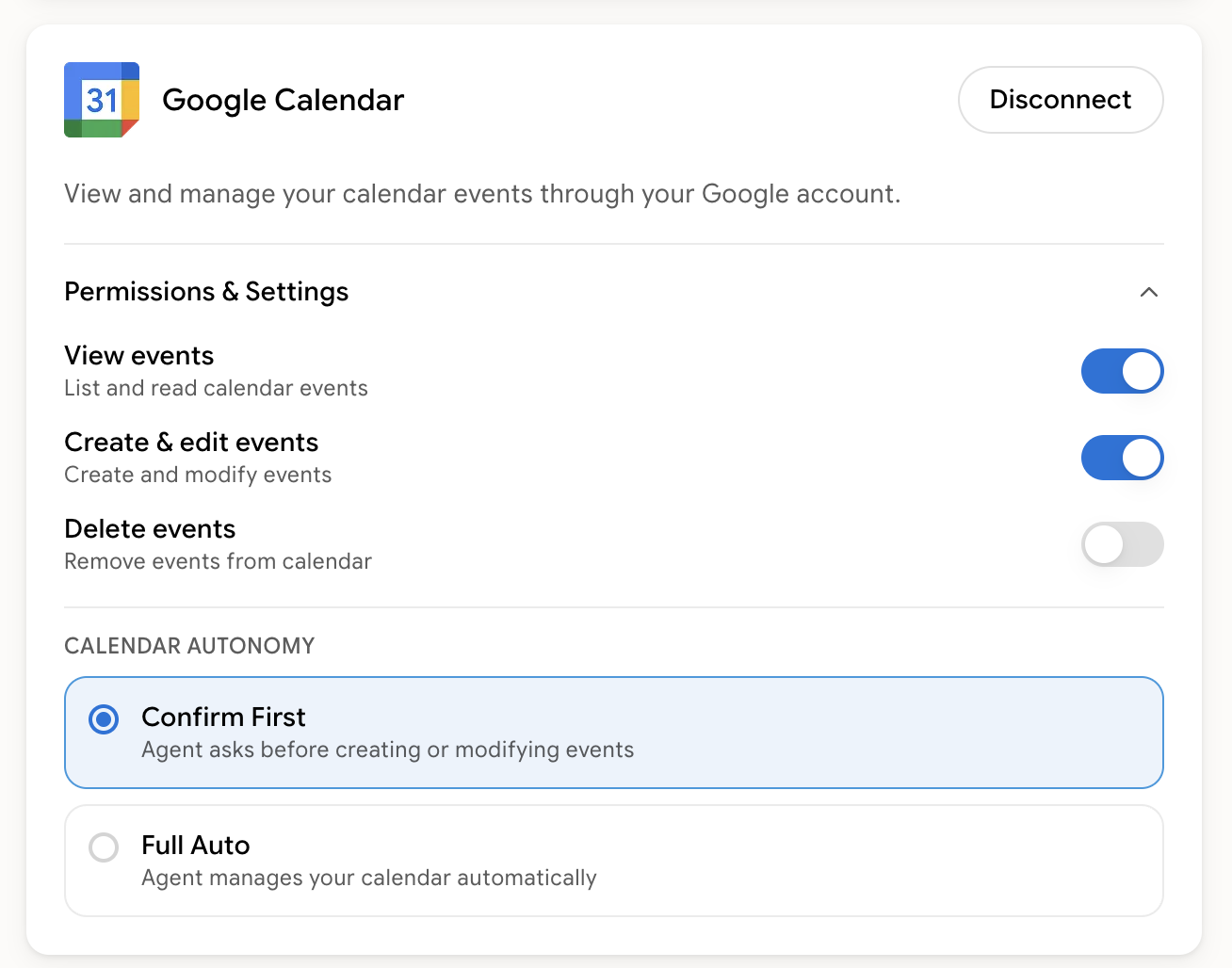\n\n- **View events** — list and read your calendar events\n- **Create & edit events** — let your companion schedule or modify events\n- **Delete events** — remove events from your calendar\n\n**Calendar Autonomy:**\n\n- **Confirm First** — your companion asks before creating or modifying events\n- **Full Auto** — your companion manages your calendar automatically\n\n## Views\n\nThe Calendar app has three views:\n\n| View | What you see |\n|---|---|\n| **Today** | Events happening today |\n| **Week** | A week grid starting from Monday |\n| **Month** | Full month overview |\n\n## Syncing\n\nEvents sync automatically when the app loads. To manually trigger a sync, use the sync button in the Calendar header.\n\n## Your companion and your calendar\n\nOnce Calendar is connected, your companion can:\n\n- Reference upcoming events when you ask about your day\n- Include today's events in your daily briefing\n- Prepare meeting briefs before scheduled events (via the Before Your Meeting routine)\n\nJust ask in Chat:\n\n> *\"Check my schedule for tomorrow\"*\n> *\"What's my next meeting?\"*\n> *\"Block 2–3 PM on Friday for deep work\"*\n\n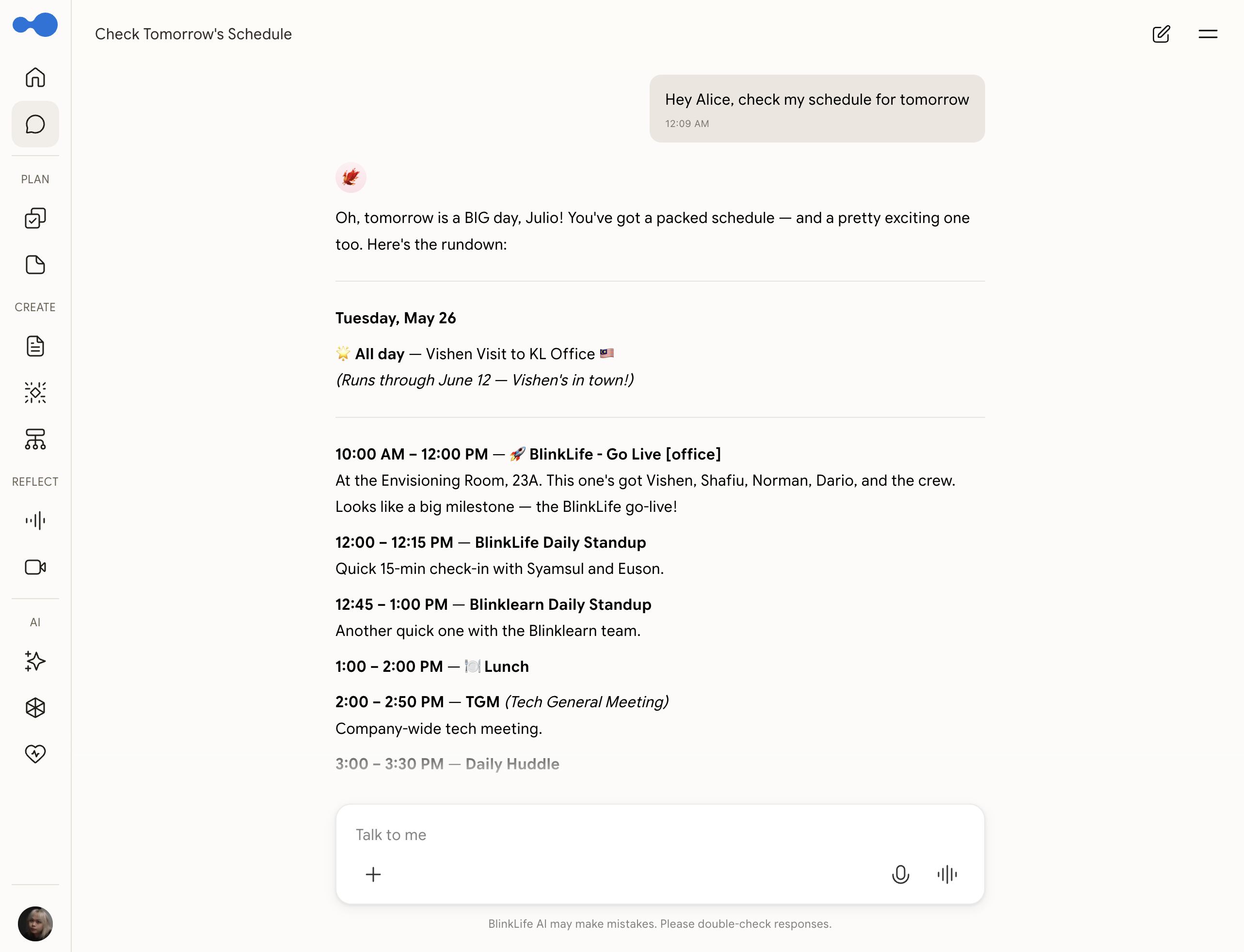\n\n## Disconnecting\n\nTo remove calendar access, go to **Settings → Connections → Google → Disconnect**. Your companion will no longer see your events.",
"word_count": 322
},
{
"id": "features/goals",
"title": "Goals",
"description": "Set meaningful goals tied to your Life Areas and let your companion track progress over time.",
"url": "https://support.blinklife.com/features/goals",
"category": "features",
"category_label": "Features",
"content": "Goals are first-class objects in BlinkLife — not tasks, not notes. They represent outcomes you're working toward, organised under Life Areas, and tracked by your companion over time.\n\n## Life Areas\n\nEvery goal belongs to a **Life Area** — a high-level domain like Health, Career, Relationships, Finance, or Learning. Life Areas give your companion a map of what matters to you, so it can surface relevant context and track progress across all your goals in that area.\n\nSet up your Life Areas in **Settings → Life Areas** or let your companion create them during onboarding.\n\n## Creating a goal\n\nOpen **Goals** from the sidebar (under Tasks & Projects) and tap **+**. Give the goal a title and link it to a Life Area.\n\nOr tell your companion in Chat:\n\n> *\"I want to run a half marathon by October\"*\n> *\"Set a goal to read 24 books this year\"*\n\nYour companion creates the goal and may ask a few clarifying questions to understand what success looks like.\n\n## Goal fields\n\n| Field | Description |\n|---|---|\n| **Title** | What you want to achieve |\n| **Life Area** | Which area of life this falls under |\n| **Target date** | Optional deadline |\n| **Description** | More context on what success looks like |\n\n## How your companion tracks goals\n\nYour companion references your goals in:\n\n- **Daily briefing** — progress updates on active goals\n- **Weekly summary** — a rollup of goal progress over the past week\n- **Conversations** — when you discuss relevant topics, your companion connects them to your goals\n\nYou don't need to manually update progress. Your companion infers it from conversations, tasks you complete, and notes you capture.\n\n## Updating or completing a goal\n\nTell your companion when something significant happens:\n\n> *\"I finished the half marathon\"*\n> *\"I've read 12 books so far this year\"*\n\nOr mark a goal complete directly from the Goals page.\n\n## Goals vs Tasks\n\n| | Goals | Tasks |\n|---|---|---|\n| What it is | An outcome to achieve | An action to complete |\n| Due date | Optional target | Specific date |\n| Progress | Tracked over time | Done / not done |\n| Lives in | Goals page | Tasks & Projects |\n\nTasks can (and should) be linked to goals — completing tasks is often how goals get done.",
"word_count": 398
},
{
"id": "features/listener",
"title": "Listener",
"description": "Run a background listening session during meetings or conversations, then let your companion process what happened.",
"url": "https://support.blinklife.com/features/listener",
"category": "features",
"category_label": "Features",
"content": "The Listener lets you record ambient audio — a meeting, a brainstorm, a call — while your companion listens in the background. When the session ends, your companion processes the transcript and creates a note with the content.\n\n## First-time setup\n\nThe first time you open **Listener**, you'll be walked through a consent flow explaining what the Listener captures and how it's used. You need to accept this before starting a session.\n\nThe Listener only records when you explicitly start a session. It does not run in the background automatically.\n\n## Starting a session\n\nOpen **Listener** from the sidebar. Pick a capture mode, confirm everyone present is okay with being listened to, and tap **Start Listening**.\n\n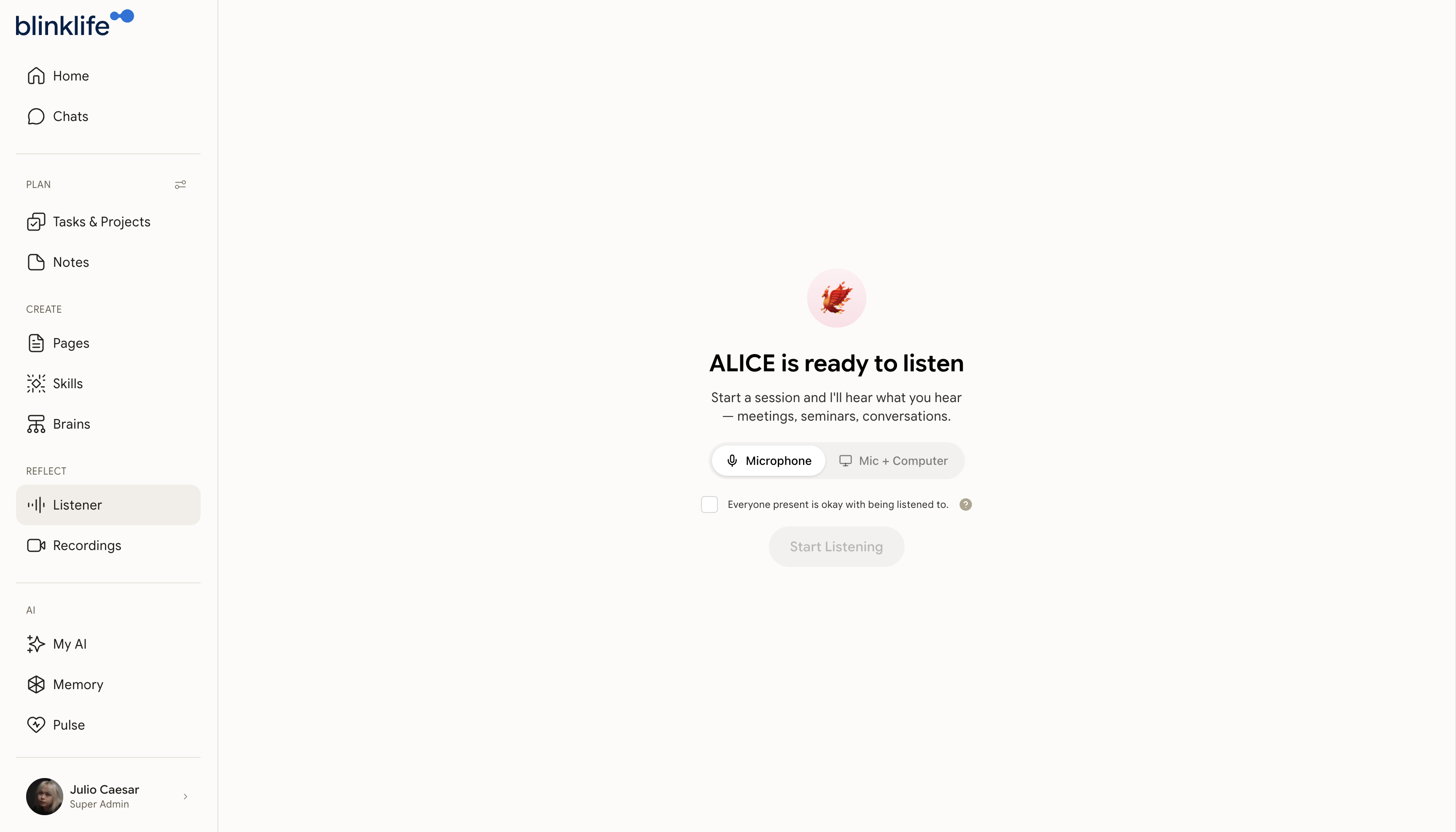\n\n- **Microphone** — just your mic (in-person meetings, brainstorms, voice notes)\n- **Mic + Computer** — your mic plus system audio from your computer (Google Meet, Zoom, anything playing through your speakers)\n\nYou can continue using the app while the Listener runs — it operates in the background.\n\n## During a session\n\nWhile listening, you can:\n- Send messages in the chat alongside the session\n- View a live transcript as speech is captured\n\n## Ending a session\n\nTap **Stop** to end the session. Your companion processes the recording, generates a transcript, and creates a **Listener note** in your Notes app with the content.\n\n## Browser requirements\n\nSystem audio capture (capturing meeting audio, not just your mic) requires **Chrome 105+**. Your microphone works in any modern browser.\n\n## Recordings\n\nPast Listener sessions are stored in the **Recordings** tab, where you can review transcripts, summaries, and any content your companion extracted.",
"word_count": 280
},
{
"id": "features/notes",
"title": "Notes",
"description": "Capture ideas, documents, and logs — organised by type and searchable by meaning.",
"url": "https://support.blinklife.com/features/notes",
"category": "features",
"category_label": "Features",
"content": "The Notes app holds three distinct types of content, each shown under its own tab.\n\n## Note types\n\n### Documents\n\nLong-form text notes — meeting write-ups, research, ideas, anything you want to capture in writing. Create a new Document from **Notes → Documents → New Note**.\n\n### Trackers\n\nStructured logs for tracking something over time — habits, metrics, moods, progress. Create a Tracker and your companion can help you log entries and reflect on patterns.\n\n### Listener\n\nThese notes are automatically created after a **Listener** session. When you run the Listener and the session ends, your companion processes the transcript and creates a Listener note containing the transcript and any summaries or extractions.\n\nYou don't create Listener notes manually — they appear here after a recording session completes.\n\n## Organisation\n\n**Tags** — Add tags to notes to group related content across types. Open a note and add tags from the detail view.\n\n**Graph** — The graph view shows connections between notes based on tags and related content.\n\n**Archive** — Archive notes you no longer need active. Archived notes don't appear in the main view but aren't deleted.\n\n## Linking notes to Brains\n\nFrom the Brains app, you can link specific notes into a Brain so your companion can reference them. Open a Brain, find the Notes section, and add the notes you want.\n\n## Searching notes\n\nNotes are semantically indexed — ask your companion in Chat to find content by meaning, not just keywords (e.g. *\"Find that note about the Vienna trip\"*).",
"word_count": 252
},
{
"id": "features/pages",
"title": "Pages",
"description": "Write and publish long-form content with control over who can see it.",
"url": "https://support.blinklife.com/features/pages",
"category": "features",
"category_label": "Features",
"content": "Pages are for longer, more structured writing — documents you want to publish, share, or keep as a reference. Unlike notes, Pages have visibility settings that control who can read them.\n\n## Creating a page\n\nOpen **Pages** from the sidebar, or just ask your companion in Chat to draft something. You can attach images alongside your request and your companion will weave them into the page.\n\n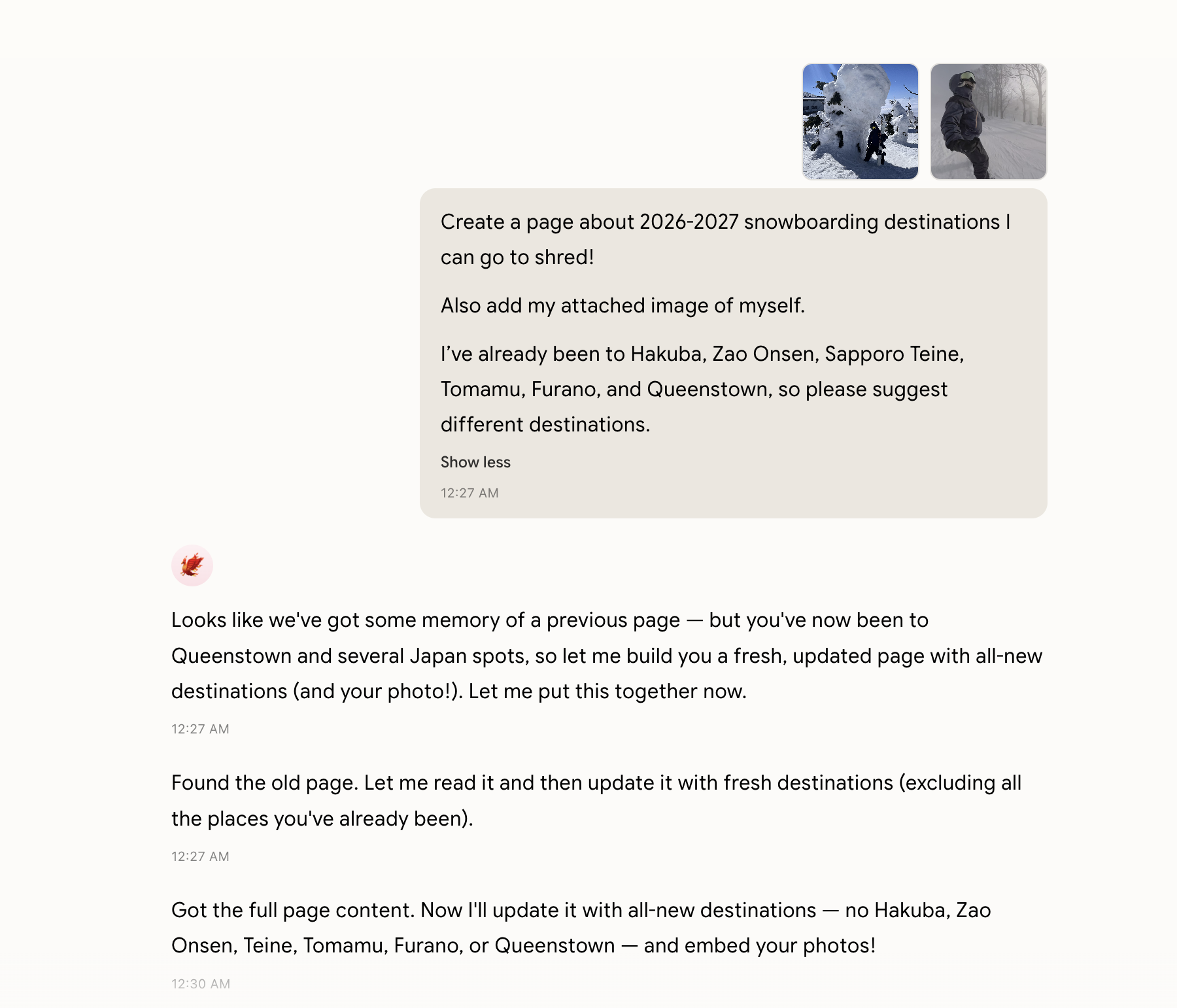\n\nYour companion drafts the page, embeds your images, and confirms when it's ready:\n\n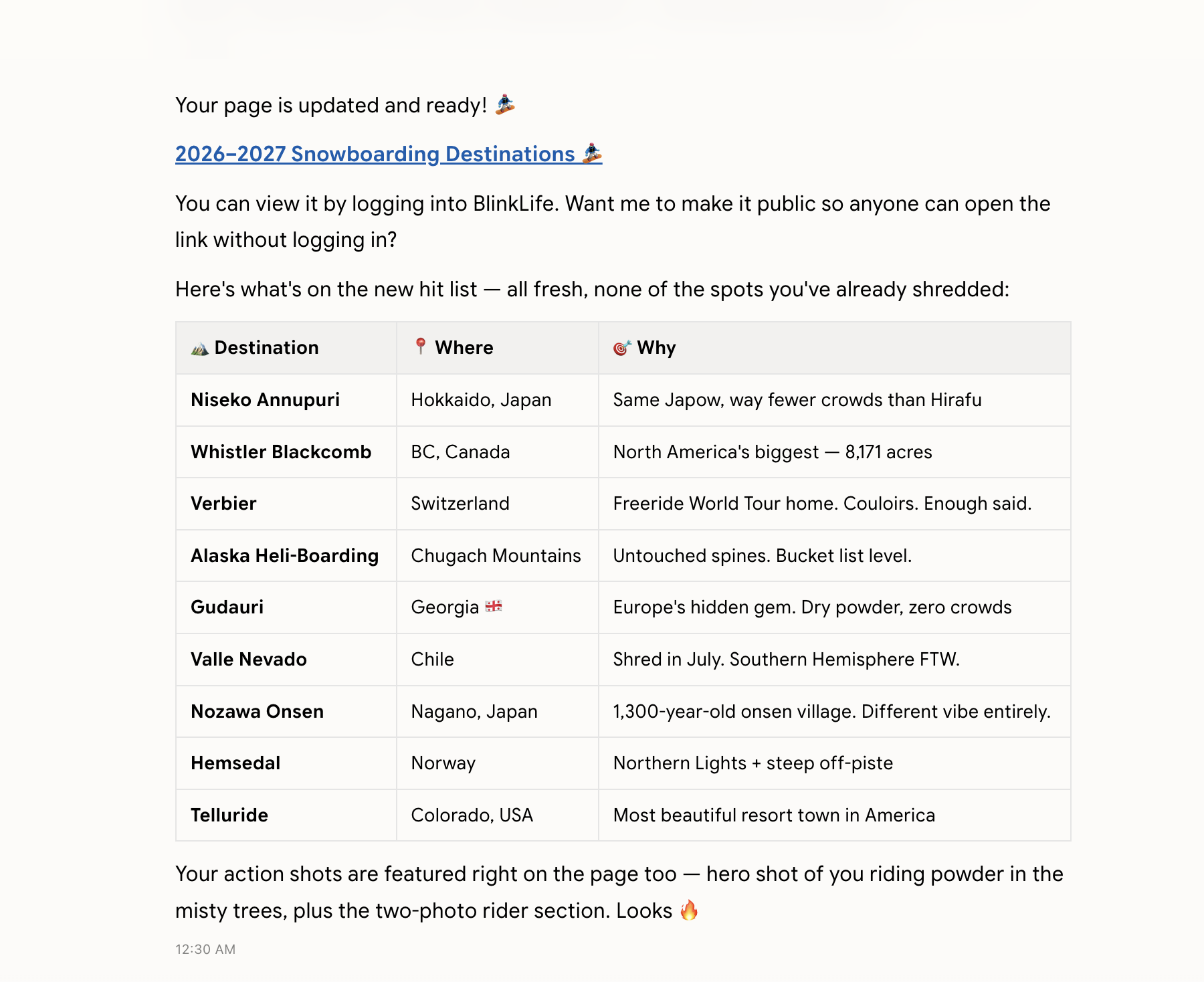\n\nIf a similar page already exists, your companion will find it, read it, and update it instead of creating a duplicate — so you can keep iterating on the same page over time.\n\nSee a real published example: [2026–2027 Snowboarding Destinations](https://www.blinklife.com/julio/p/snowboarding-destinations-2026-2027).\n\n## Visibility settings\n\nEvery page has one of three visibility levels:\n\n| Setting | Who can see it |\n|---|---|\n| **Private** | Only you |\n| **Public** | Anyone with the URL (no login required) |\n| **Private Link** | Anyone with the specific share link, but not discoverable publicly |\n\nChange a page's visibility from the page editor or the Pages list.\n\n## Sharing pages\n\nFor **Public** and **Private Link** pages, a shareable URL is generated using your handle and a slug — e.g. `blinklife.com/your-handle/p/page-slug`. Anyone with the link can read the page without signing in.\n\n## Linking pages to Brains\n\nPages can be linked to Brains so your companion can reference their content during conversations. Open a Brain and add the pages you want from the Pages section.\n\n## Filtering your pages\n\nIn the Pages list, use the tabs to filter by visibility:\n\n- **All** — every page\n- **Private** — only your private pages\n- **Private Link** — pages shared via link\n- **Public** — publicly visible pages",
"word_count": 321
},
{
"id": "features/pulse",
"title": "Pulse",
"description": "Your companion's proactive layer — routines, nudges, and scheduled check-ins delivered automatically.",
"url": "https://support.blinklife.com/features/pulse",
"category": "features",
"category_label": "Features",
"content": "Pulse is how BlinkLife stays in sync with your life without you having to ask. It schedules and delivers messages from your companion at the right times — morning briefings, reflections, meeting prep, and any custom reminders you set up.\n\n## What's in Pulse\n\n**Routines** — recurring messages your companion sends automatically. BlinkLife ships with five built-in routines (morning briefing, daily diary, nightly reflection, weekly summary, and before-meeting prep) and you can create unlimited custom ones.\n\nSee [Routines](/getting-started/routines) for a full breakdown of each built-in routine and how to create your own.\n\n## Where Pulse messages appear\n\nPulse messages arrive in your main **Chat** and are clearly labelled with the routine name. You can reply to any Pulse message just like a regular chat message.\n\n\n\n## Managing Pulse\n\nOpen **Pulse** from the sidebar to see all your active routines, their schedules, and whether they're enabled.\n\n\n\nFrom there you can:\n\n- Toggle any routine on or off\n- Change the time or days a routine fires\n- Delete a custom routine\n\nYou can also manage routines through Chat:\n\n> *\"Pause my nightly reflection for this week\"*\n> *\"Change my morning briefing to 8 AM\"*\n> *\"Add a routine every Monday morning to review my goals\"*\n\n\n\n## Delivery channels\n\n| Channel | Setup |\n|---|---|\n| **In-app Chat** | Always on — no setup needed |",
"word_count": 253
},
{
"id": "features/sharing-profiles",
"title": "Sharing & Public Profiles",
"description": "Share pages publicly, control visibility, and manage your BlinkLife profile.",
"url": "https://support.blinklife.com/features/sharing-profiles",
"category": "features",
"category_label": "Features",
"content": "BlinkLife gives every user a public handle (`/{handle}`) and the ability to publish pages that anyone can view — no BlinkLife account required.\n\n## Your handle\n\nYour handle is your unique identifier on BlinkLife — for example, `blinklife.com/julio`. It appears on your public profile and in all public page URLs.\n\nTo change your handle: go to **Settings → Account → Handle**.\n\n## Page visibility\n\nEvery page has one of three visibility settings:\n\n| Visibility | Who can view |\n|---|---|\n| **Private** | Only you |\n| **Link only** | Anyone with the direct link |\n| **Public** | Anyone — appears on your public profile |\n\nChange visibility from the page viewer using the dropdown in the top bar.\n\n## Sharing a page\n\n1. Open the page at `/pages/{id}`\n2. Set visibility to **Public** or **Link only**\n3. Tap the **Share** icon to copy the link\n\nThe shareable URL follows the pattern:\n```\nblinklife.com/{handle}/p/{slug}\n```\n\nOr with a folder:\n```\nblinklife.com/{handle}/p/{folder}/{slug}\n```\n\nRecipients can view the page without signing in. Interactive pages (with live JavaScript components) run fully in the browser.\n\n## Changing a page's URL\n\nOpen the page, tap the **⋮ menu → Change URL**, and pick a new slug or folder. The old URL immediately stops working — update any links you've shared.\n\n## Your public profile\n\nYour profile at `blinklife.com/{handle}` shows:\n\n- Your display name and avatar\n- All pages you've set to **Public**\n\nPrivate and link-only pages don't appear on your profile.\n\nTo update your display name or avatar: go to **Settings → Account**.\n\n## Folders\n\nPages can be organised into folders, which appear in the URL:\n\n```\nblinklife.com/{handle}/p/{folder}/{slug}\n```\n\nAssign a folder when creating or editing a page. Folders don't have their own page — they're just a URL prefix that groups related pages.",
"word_count": 300
},
{
"id": "features/skills-apps",
"title": "Skills & Apps",
"description": "An overview of BlinkLife's sidebar app spaces and how Skills extend your companion.",
"url": "https://support.blinklife.com/features/skills-apps",
"category": "features",
"category_label": "Features",
"content": "BlinkLife's sidebar gives you access to a set of purpose-built app spaces, each powered by your AI companion. Skills extend what your companion can do within those spaces.\n\n## What's in the sidebar\n\n| Section | Apps |\n|---|---|\n| **Core** | Home, Chats, Life Areas |\n| **Plan** | Tasks & Projects, Notes |\n| **Create** | Pages, Skills, Brains |\n| **Reflect** | Listener, Recordings, Insights |\n| **AI** | My AI, Memory, Pulse |\n\nYou can show or hide apps in **Settings → Tools**.\n\n## Skills\n\nSkills are reusable behaviours that change how your companion responds in a given context — a polished writing style, a specific framework, a personality, or domain expertise. Browse, toggle, and create skills in the **Skills** section of the sidebar.\n\n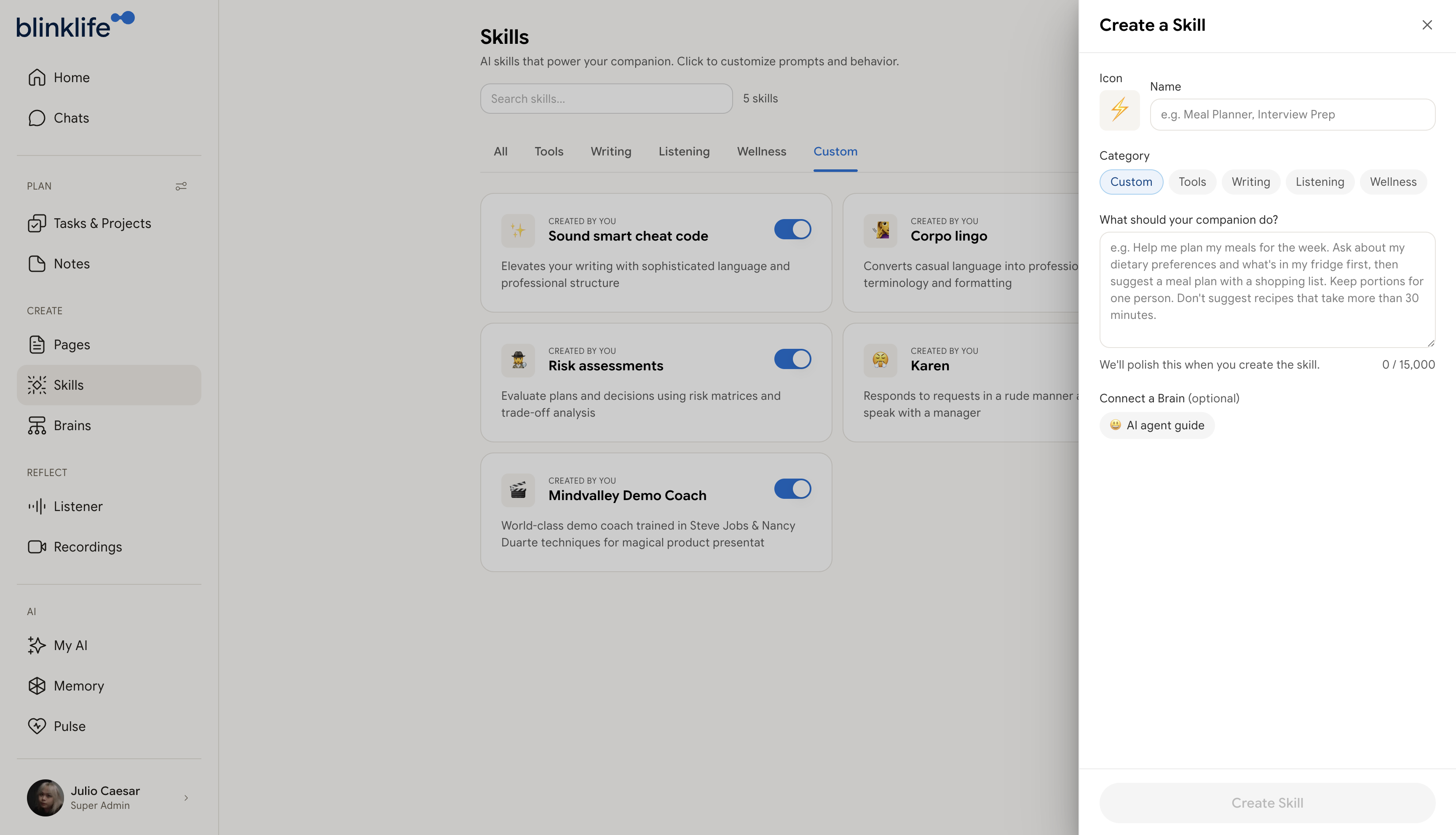\n\n### Creating a custom skill\n\nClick **Create Skill** and fill in:\n\n- **Icon** and **Name** — how it shows up in the list (e.g. 🍱 *Meal Planner*)\n- **Category** — Custom, Tools, Writing, Listening, or Wellness\n- **What should your companion do?** — a plain-language prompt describing the behaviour. We polish it once you save.\n- **Connect a Brain** (optional) — give the skill grounding from a Brain so it draws on your own knowledge\n\nToggle skills on or off from the list. Active skills are applied automatically when relevant to the conversation.",
"word_count": 236
},
{
"id": "features/tasks-projects",
"title": "Tasks & Projects",
"description": "Capture, organise, and complete tasks with help from your AI companion.",
"url": "https://support.blinklife.com/features/tasks-projects",
"category": "features",
"category_label": "Features",
"content": "Tasks are BlinkLife's core productivity unit. You can create them manually, capture them via voice, or let your companion extract them from conversations automatically.\n\n## Creating a task\n\n**Via chat:** Tell your companion — *\"Remind me to send the Q2 report to Sarah by Friday\"* — and it creates a task with the right due date.\n\n**Via the Tasks tab:** Tap **+** to open the quick-add form. Type the task name, set a due date, and save.\n\n**Via voice:** During a voice conversation, say *\"Add a task to...\"* and your companion confirms the capture.\n\n## Task fields\n\n| Field | Description |\n|---|---|\n| **Title** | What needs to be done |\n| **Due date** | Optional. Shown in Home and the daily briefing |\n| **Priority** | A numeric score (higher = more important) |\n| **Energy level** | High, Medium, or Low — how much focus this task needs |\n| **Project** | Every task belongs to a project (or the Inbox) |\n| **Notes / description** | Extra context or details |\n\n## Projects\n\nProjects group related tasks. Every task must belong to a project. Create new projects from the **Tasks & Projects** sidebar.\n\n## Inbox\n\nThe **Inbox** is a special built-in project where new tasks land if you don't assign a project. Review it regularly and move tasks where they belong.\n\n
\n\n## How memories are recalled\n\nWhen you start a conversation, your companion retrieves the most relevant memories based on what you're discussing. You don't need to repeat context you've already shared — it's automatically injected.\n\n## Correcting a memory\n\nIf your companion remembers something incorrectly, simply tell it:\n\n> *\"That's not right — I actually...\"*\n\nIt will update its understanding based on your correction.\n\n## Memory export and import\n\nFrom the **Memory** page, you can export your full memory graph and import it back as a local backup.",
"word_count": 276
},
{
"id": "features/brains",
"title": "Brains",
"description": "Create knowledge collections your AI companion draws from during conversations.",
"url": "https://support.blinklife.com/features/brains",
"category": "features",
"category_label": "Features",
"content": "Brains are personal knowledge collections. When you add content to a Brain, your companion can reference it when answering questions, drafting content, or helping you think through problems.\n\n## Creating a Brain\n\nOpen **Brains** from the sidebar and tap **+**. A new Brain is created immediately with a default title. Tap the title to rename it.\n\nYour companion auto-generates a description for the Brain after you add content — you don't need to write one yourself.\n\n## What you can add\n\n**Documents** — Upload files directly into the Brain. Supported formats:\n\n`.pdf` `.epub` `.docx` `.doc` `.txt` `.md` `.csv` `.rtf` `.vtt` `.srt`\n\nYou can also paste text directly without uploading a file.\n\n**Notes** — Link existing notes from your Notes app into the Brain.\n\n**Pages** — Link pages you've written in the Pages app into the Brain.\n\n## Size tiers\n\nWhen creating a Brain, you can set a size tier that determines how much content it can hold:\n\n| Tier | Use case |\n|---|---|\n| **Focused** | Tightly scoped topic — a single project, person, or concept |\n| **Standard** | General-purpose knowledge collection (default) |\n| **Deep** | Large or comprehensive knowledge base |\n\n## How your companion uses Brains\n\nWhen you're in a conversation, your companion checks your Brains to see if any are relevant to what you're discussing. If so, it pulls in that content as context — you don't need to reference the Brain by name.\n\nYou can also mention a Brain explicitly:\n\n> *\"Based on my Marketing Brain, what should I prioritise this week?\"*\n\n## Archiving Brains\n\nYou can archive a Brain you no longer need. Archived Brains don't appear in the active list but aren't deleted.",
"word_count": 282
},
{
"id": "features/calendar",
"title": "Calendar",
"description": "View and discuss your schedule directly in BlinkLife, synced from Google Calendar.",
"url": "https://support.blinklife.com/features/calendar",
"category": "features",
"category_label": "Features",
"content": "The Calendar app shows your events from Google Calendar inside BlinkLife. Your companion can reference your schedule during conversations and include upcoming events in your daily briefing.\n\n## Connecting Google Calendar\n\nCalendar requires a Google Calendar connection. Go to **Settings → Connections** and connect your Google account. Once connected, your events will sync automatically.\n\n### Permissions & autonomy\n\nAfter connecting, expand **Permissions & Settings** on the Google Calendar card to control exactly what your companion can do:\n\n\n\n- **View events** — list and read your calendar events\n- **Create & edit events** — let your companion schedule or modify events\n- **Delete events** — remove events from your calendar\n\n**Calendar Autonomy:**\n\n- **Confirm First** — your companion asks before creating or modifying events\n- **Full Auto** — your companion manages your calendar automatically\n\n## Views\n\nThe Calendar app has three views:\n\n| View | What you see |\n|---|---|\n| **Today** | Events happening today |\n| **Week** | A week grid starting from Monday |\n| **Month** | Full month overview |\n\n## Syncing\n\nEvents sync automatically when the app loads. To manually trigger a sync, use the sync button in the Calendar header.\n\n## Your companion and your calendar\n\nOnce Calendar is connected, your companion can:\n\n- Reference upcoming events when you ask about your day\n- Include today's events in your daily briefing\n- Prepare meeting briefs before scheduled events (via the Before Your Meeting routine)\n\nJust ask in Chat:\n\n> *\"Check my schedule for tomorrow\"*\n> *\"What's my next meeting?\"*\n> *\"Block 2–3 PM on Friday for deep work\"*\n\n\n\n## Disconnecting\n\nTo remove calendar access, go to **Settings → Connections → Google → Disconnect**. Your companion will no longer see your events.",
"word_count": 322
},
{
"id": "features/goals",
"title": "Goals",
"description": "Set meaningful goals tied to your Life Areas and let your companion track progress over time.",
"url": "https://support.blinklife.com/features/goals",
"category": "features",
"category_label": "Features",
"content": "Goals are first-class objects in BlinkLife — not tasks, not notes. They represent outcomes you're working toward, organised under Life Areas, and tracked by your companion over time.\n\n## Life Areas\n\nEvery goal belongs to a **Life Area** — a high-level domain like Health, Career, Relationships, Finance, or Learning. Life Areas give your companion a map of what matters to you, so it can surface relevant context and track progress across all your goals in that area.\n\nSet up your Life Areas in **Settings → Life Areas** or let your companion create them during onboarding.\n\n## Creating a goal\n\nOpen **Goals** from the sidebar (under Tasks & Projects) and tap **+**. Give the goal a title and link it to a Life Area.\n\nOr tell your companion in Chat:\n\n> *\"I want to run a half marathon by October\"*\n> *\"Set a goal to read 24 books this year\"*\n\nYour companion creates the goal and may ask a few clarifying questions to understand what success looks like.\n\n## Goal fields\n\n| Field | Description |\n|---|---|\n| **Title** | What you want to achieve |\n| **Life Area** | Which area of life this falls under |\n| **Target date** | Optional deadline |\n| **Description** | More context on what success looks like |\n\n## How your companion tracks goals\n\nYour companion references your goals in:\n\n- **Daily briefing** — progress updates on active goals\n- **Weekly summary** — a rollup of goal progress over the past week\n- **Conversations** — when you discuss relevant topics, your companion connects them to your goals\n\nYou don't need to manually update progress. Your companion infers it from conversations, tasks you complete, and notes you capture.\n\n## Updating or completing a goal\n\nTell your companion when something significant happens:\n\n> *\"I finished the half marathon\"*\n> *\"I've read 12 books so far this year\"*\n\nOr mark a goal complete directly from the Goals page.\n\n## Goals vs Tasks\n\n| | Goals | Tasks |\n|---|---|---|\n| What it is | An outcome to achieve | An action to complete |\n| Due date | Optional target | Specific date |\n| Progress | Tracked over time | Done / not done |\n| Lives in | Goals page | Tasks & Projects |\n\nTasks can (and should) be linked to goals — completing tasks is often how goals get done.",
"word_count": 398
},
{
"id": "features/listener",
"title": "Listener",
"description": "Run a background listening session during meetings or conversations, then let your companion process what happened.",
"url": "https://support.blinklife.com/features/listener",
"category": "features",
"category_label": "Features",
"content": "The Listener lets you record ambient audio — a meeting, a brainstorm, a call — while your companion listens in the background. When the session ends, your companion processes the transcript and creates a note with the content.\n\n## First-time setup\n\nThe first time you open **Listener**, you'll be walked through a consent flow explaining what the Listener captures and how it's used. You need to accept this before starting a session.\n\nThe Listener only records when you explicitly start a session. It does not run in the background automatically.\n\n## Starting a session\n\nOpen **Listener** from the sidebar. Pick a capture mode, confirm everyone present is okay with being listened to, and tap **Start Listening**.\n\n\n\n- **Microphone** — just your mic (in-person meetings, brainstorms, voice notes)\n- **Mic + Computer** — your mic plus system audio from your computer (Google Meet, Zoom, anything playing through your speakers)\n\nYou can continue using the app while the Listener runs — it operates in the background.\n\n## During a session\n\nWhile listening, you can:\n- Send messages in the chat alongside the session\n- View a live transcript as speech is captured\n\n## Ending a session\n\nTap **Stop** to end the session. Your companion processes the recording, generates a transcript, and creates a **Listener note** in your Notes app with the content.\n\n## Browser requirements\n\nSystem audio capture (capturing meeting audio, not just your mic) requires **Chrome 105+**. Your microphone works in any modern browser.\n\n## Recordings\n\nPast Listener sessions are stored in the **Recordings** tab, where you can review transcripts, summaries, and any content your companion extracted.",
"word_count": 280
},
{
"id": "features/notes",
"title": "Notes",
"description": "Capture ideas, documents, and logs — organised by type and searchable by meaning.",
"url": "https://support.blinklife.com/features/notes",
"category": "features",
"category_label": "Features",
"content": "The Notes app holds three distinct types of content, each shown under its own tab.\n\n## Note types\n\n### Documents\n\nLong-form text notes — meeting write-ups, research, ideas, anything you want to capture in writing. Create a new Document from **Notes → Documents → New Note**.\n\n### Trackers\n\nStructured logs for tracking something over time — habits, metrics, moods, progress. Create a Tracker and your companion can help you log entries and reflect on patterns.\n\n### Listener\n\nThese notes are automatically created after a **Listener** session. When you run the Listener and the session ends, your companion processes the transcript and creates a Listener note containing the transcript and any summaries or extractions.\n\nYou don't create Listener notes manually — they appear here after a recording session completes.\n\n## Organisation\n\n**Tags** — Add tags to notes to group related content across types. Open a note and add tags from the detail view.\n\n**Graph** — The graph view shows connections between notes based on tags and related content.\n\n**Archive** — Archive notes you no longer need active. Archived notes don't appear in the main view but aren't deleted.\n\n## Linking notes to Brains\n\nFrom the Brains app, you can link specific notes into a Brain so your companion can reference them. Open a Brain, find the Notes section, and add the notes you want.\n\n## Searching notes\n\nNotes are semantically indexed — ask your companion in Chat to find content by meaning, not just keywords (e.g. *\"Find that note about the Vienna trip\"*).",
"word_count": 252
},
{
"id": "features/pages",
"title": "Pages",
"description": "Write and publish long-form content with control over who can see it.",
"url": "https://support.blinklife.com/features/pages",
"category": "features",
"category_label": "Features",
"content": "Pages are for longer, more structured writing — documents you want to publish, share, or keep as a reference. Unlike notes, Pages have visibility settings that control who can read them.\n\n## Creating a page\n\nOpen **Pages** from the sidebar, or just ask your companion in Chat to draft something. You can attach images alongside your request and your companion will weave them into the page.\n\n\n\nYour companion drafts the page, embeds your images, and confirms when it's ready:\n\n\n\nIf a similar page already exists, your companion will find it, read it, and update it instead of creating a duplicate — so you can keep iterating on the same page over time.\n\nSee a real published example: [2026–2027 Snowboarding Destinations](https://www.blinklife.com/julio/p/snowboarding-destinations-2026-2027).\n\n## Visibility settings\n\nEvery page has one of three visibility levels:\n\n| Setting | Who can see it |\n|---|---|\n| **Private** | Only you |\n| **Public** | Anyone with the URL (no login required) |\n| **Private Link** | Anyone with the specific share link, but not discoverable publicly |\n\nChange a page's visibility from the page editor or the Pages list.\n\n## Sharing pages\n\nFor **Public** and **Private Link** pages, a shareable URL is generated using your handle and a slug — e.g. `blinklife.com/your-handle/p/page-slug`. Anyone with the link can read the page without signing in.\n\n## Linking pages to Brains\n\nPages can be linked to Brains so your companion can reference their content during conversations. Open a Brain and add the pages you want from the Pages section.\n\n## Filtering your pages\n\nIn the Pages list, use the tabs to filter by visibility:\n\n- **All** — every page\n- **Private** — only your private pages\n- **Private Link** — pages shared via link\n- **Public** — publicly visible pages",
"word_count": 321
},
{
"id": "features/pulse",
"title": "Pulse",
"description": "Your companion's proactive layer — routines, nudges, and scheduled check-ins delivered automatically.",
"url": "https://support.blinklife.com/features/pulse",
"category": "features",
"category_label": "Features",
"content": "Pulse is how BlinkLife stays in sync with your life without you having to ask. It schedules and delivers messages from your companion at the right times — morning briefings, reflections, meeting prep, and any custom reminders you set up.\n\n## What's in Pulse\n\n**Routines** — recurring messages your companion sends automatically. BlinkLife ships with five built-in routines (morning briefing, daily diary, nightly reflection, weekly summary, and before-meeting prep) and you can create unlimited custom ones.\n\nSee [Routines](/getting-started/routines) for a full breakdown of each built-in routine and how to create your own.\n\n## Where Pulse messages appear\n\nPulse messages arrive in your main **Chat** and are clearly labelled with the routine name. You can reply to any Pulse message just like a regular chat message.\n\n\n\n## Managing Pulse\n\nOpen **Pulse** from the sidebar to see all your active routines, their schedules, and whether they're enabled.\n\n\n\nFrom there you can:\n\n- Toggle any routine on or off\n- Change the time or days a routine fires\n- Delete a custom routine\n\nYou can also manage routines through Chat:\n\n> *\"Pause my nightly reflection for this week\"*\n> *\"Change my morning briefing to 8 AM\"*\n> *\"Add a routine every Monday morning to review my goals\"*\n\n\n\n## Delivery channels\n\n| Channel | Setup |\n|---|---|\n| **In-app Chat** | Always on — no setup needed |",
"word_count": 253
},
{
"id": "features/sharing-profiles",
"title": "Sharing & Public Profiles",
"description": "Share pages publicly, control visibility, and manage your BlinkLife profile.",
"url": "https://support.blinklife.com/features/sharing-profiles",
"category": "features",
"category_label": "Features",
"content": "BlinkLife gives every user a public handle (`/{handle}`) and the ability to publish pages that anyone can view — no BlinkLife account required.\n\n## Your handle\n\nYour handle is your unique identifier on BlinkLife — for example, `blinklife.com/julio`. It appears on your public profile and in all public page URLs.\n\nTo change your handle: go to **Settings → Account → Handle**.\n\n## Page visibility\n\nEvery page has one of three visibility settings:\n\n| Visibility | Who can view |\n|---|---|\n| **Private** | Only you |\n| **Link only** | Anyone with the direct link |\n| **Public** | Anyone — appears on your public profile |\n\nChange visibility from the page viewer using the dropdown in the top bar.\n\n## Sharing a page\n\n1. Open the page at `/pages/{id}`\n2. Set visibility to **Public** or **Link only**\n3. Tap the **Share** icon to copy the link\n\nThe shareable URL follows the pattern:\n```\nblinklife.com/{handle}/p/{slug}\n```\n\nOr with a folder:\n```\nblinklife.com/{handle}/p/{folder}/{slug}\n```\n\nRecipients can view the page without signing in. Interactive pages (with live JavaScript components) run fully in the browser.\n\n## Changing a page's URL\n\nOpen the page, tap the **⋮ menu → Change URL**, and pick a new slug or folder. The old URL immediately stops working — update any links you've shared.\n\n## Your public profile\n\nYour profile at `blinklife.com/{handle}` shows:\n\n- Your display name and avatar\n- All pages you've set to **Public**\n\nPrivate and link-only pages don't appear on your profile.\n\nTo update your display name or avatar: go to **Settings → Account**.\n\n## Folders\n\nPages can be organised into folders, which appear in the URL:\n\n```\nblinklife.com/{handle}/p/{folder}/{slug}\n```\n\nAssign a folder when creating or editing a page. Folders don't have their own page — they're just a URL prefix that groups related pages.",
"word_count": 300
},
{
"id": "features/skills-apps",
"title": "Skills & Apps",
"description": "An overview of BlinkLife's sidebar app spaces and how Skills extend your companion.",
"url": "https://support.blinklife.com/features/skills-apps",
"category": "features",
"category_label": "Features",
"content": "BlinkLife's sidebar gives you access to a set of purpose-built app spaces, each powered by your AI companion. Skills extend what your companion can do within those spaces.\n\n## What's in the sidebar\n\n| Section | Apps |\n|---|---|\n| **Core** | Home, Chats, Life Areas |\n| **Plan** | Tasks & Projects, Notes |\n| **Create** | Pages, Skills, Brains |\n| **Reflect** | Listener, Recordings, Insights |\n| **AI** | My AI, Memory, Pulse |\n\nYou can show or hide apps in **Settings → Tools**.\n\n## Skills\n\nSkills are reusable behaviours that change how your companion responds in a given context — a polished writing style, a specific framework, a personality, or domain expertise. Browse, toggle, and create skills in the **Skills** section of the sidebar.\n\n\n\n### Creating a custom skill\n\nClick **Create Skill** and fill in:\n\n- **Icon** and **Name** — how it shows up in the list (e.g. 🍱 *Meal Planner*)\n- **Category** — Custom, Tools, Writing, Listening, or Wellness\n- **What should your companion do?** — a plain-language prompt describing the behaviour. We polish it once you save.\n- **Connect a Brain** (optional) — give the skill grounding from a Brain so it draws on your own knowledge\n\nToggle skills on or off from the list. Active skills are applied automatically when relevant to the conversation.",
"word_count": 236
},
{
"id": "features/tasks-projects",
"title": "Tasks & Projects",
"description": "Capture, organise, and complete tasks with help from your AI companion.",
"url": "https://support.blinklife.com/features/tasks-projects",
"category": "features",
"category_label": "Features",
"content": "Tasks are BlinkLife's core productivity unit. You can create them manually, capture them via voice, or let your companion extract them from conversations automatically.\n\n## Creating a task\n\n**Via chat:** Tell your companion — *\"Remind me to send the Q2 report to Sarah by Friday\"* — and it creates a task with the right due date.\n\n**Via the Tasks tab:** Tap **+** to open the quick-add form. Type the task name, set a due date, and save.\n\n**Via voice:** During a voice conversation, say *\"Add a task to...\"* and your companion confirms the capture.\n\n## Task fields\n\n| Field | Description |\n|---|---|\n| **Title** | What needs to be done |\n| **Due date** | Optional. Shown in Home and the daily briefing |\n| **Priority** | A numeric score (higher = more important) |\n| **Energy level** | High, Medium, or Low — how much focus this task needs |\n| **Project** | Every task belongs to a project (or the Inbox) |\n| **Notes / description** | Extra context or details |\n\n## Projects\n\nProjects group related tasks. Every task must belong to a project. Create new projects from the **Tasks & Projects** sidebar.\n\n## Inbox\n\nThe **Inbox** is a special built-in project where new tasks land if you don't assign a project. Review it regularly and move tasks where they belong.\n\n \n\n## Life Areas\n\nLife Areas (e.g. Health, Career, Relationships) sit above projects and help your companion understand your priorities. You can link a project to a Life Area when creating or editing it.\n\n## AI task extraction\n\nAfter a voice session or long conversation, your companion may suggest tasks it noticed. You'll see these as a prompt in Chat — accept to add them to your Inbox, or dismiss to ignore them.",
"word_count": 312
},
{
"id": "features/voice",
"title": "Voice",
"description": "Talk to your companion, dictate messages, and listen to responses — three voice surfaces in BlinkLife.",
"url": "https://support.blinklife.com/features/voice",
"category": "features",
"category_label": "Features",
"content": "BlinkLife has three independent voice surfaces. Each does something different and can be used independently.\n\n## Dictation (mic button)\n\nTap the **microphone icon** in the Chat input bar to dictate a message instead of typing. Hold to record, release to transcribe. The transcribed text appears in the input field so you can review it before sending.\n\nUse dictation for quick queries, voice-to-text notes, or hands-free input.\n\n## Live Call\n\nThe **Live Call** button starts a real-time voice conversation with your companion — like a phone call. Your voice goes in, your companion responds out loud, and the conversation flows naturally without tapping send.\n\nTo start a live call: tap the phone icon in the Chat header.\n\n**During a call:**\n- Speak naturally — the call detects when you pause and responds\n- Your companion can run tools (check your calendar, create tasks, look up notes) during the call\n- The full transcript is saved to Chat when the call ends\n\n**Ending a call:** tap the red hang-up button or say *\"Goodbye\"*.\n\n## Read Aloud\n\nAny message in Chat has a **speaker icon**. Tap it to have your companion read that message aloud in your chosen voice. This works for both your companion's responses and notes or pages it generates.\n\nTo change the voice used for read-aloud: go to **My AI → Voice** and preview the available options.\n\n\n\n---\n\n## Browser support\n\n| Browser | Dictation | Live Call | Read Aloud |\n|---|---|---|---|\n| Chrome | ✅ | ✅ | ✅ |\n| Safari | ✅ | ✅ | ✅ |\n| Firefox | ⚠️ Limited | ❌ | ✅ |\n| Edge | ✅ | ✅ | ✅ |\n\nChrome or Safari are recommended for full voice support.\n\n## Microphone permissions\n\nBlinkLife needs microphone access for dictation and live calls. When prompted, click **Allow**. If you accidentally blocked it:\n\n- **Chrome:** click the lock icon in the address bar → Site settings → Microphone → Allow\n- **Safari:** Safari → Settings → Websites → Microphone → Allow for blinklife.com\n\n## Voice on mobile\n\nAll three voice surfaces are available in the BlinkLife mobile app. Live calls work over both Wi-Fi and mobile data — a stable connection reduces latency.\n\n## Troubleshooting\n\nIf voice isn't working, see [Voice Not Working?](/troubleshooting/voice-issues) for step-by-step fixes.",
"word_count": 391
},
{
"id": "troubleshooting/app-issues",
"title": "App Performance Issues",
"description": "Fix slow loading, blank screens, and other performance problems in BlinkLife.",
"url": "https://support.blinklife.com/troubleshooting/app-issues",
"category": "troubleshooting",
"category_label": "Troubleshooting",
"content": "## The app is blank or not loading\n\nTry these steps in order:\n\n1. **Hard refresh** — `⌘ + Shift + R` on Mac, `Ctrl + Shift + R` on Windows\n2. **Clear browser cache** — Browser settings → Clear browsing data → Cached images and files\n3. **Disable extensions** — Ad blockers and privacy extensions can interfere. Try in an incognito window with extensions off\n4. **Try a different browser** — Chrome is recommended\n\nIf none of these work, [contact support](/contact) with your browser and OS details.\n\n## The app is slow\n\n| Symptom | Try this |\n|---|---|\n| Slow to open | Usually improves after the first load (cached) |\n| Chat responses slow | Check your internet connection |\n| Voice lag | Switch to a wired connection or disable VPN |\n\n## I'm signed out unexpectedly\n\n- Check that cookies are enabled in your browser\n- Disable any extensions that clear cookies on close\n- Make sure the browser isn't set to clear cookies on exit\n\n## Changes aren't showing up\n\nIf something you did isn't reflected:\n\n1. Hard-refresh the page (`⌘ + Shift + R`)\n2. Check your internet connection\n3. Sign out and back in\n\nIf data is missing after a few minutes, [contact support](/contact).",
"word_count": 212
},
{
"id": "troubleshooting/sync-issues",
"title": "Sync & Connection Issues",
"description": "Troubleshoot problems with Google Calendar sync, data not updating, and connection errors.",
"url": "https://support.blinklife.com/troubleshooting/sync-issues",
"category": "troubleshooting",
"category_label": "Troubleshooting",
"content": "## Google Calendar isn't syncing\n\n1. Go to **Settings → Connections**\n2. Check the Google connection status — if it shows **Reconnect**, tap it and complete the OAuth flow again\n3. Wait a few minutes for the sync to complete\n4. If events still don't appear, disconnect and reconnect Google\n\n## Google Gmail isn't connecting\n\nIf Gmail was connected before but stopped working, reconnect it:\n\n1. Go to **Settings → Connections → Google → Disconnect**\n2. Reconnect and accept all requested permissions\n\n## \"Connection lost\" in voice\n\nThis appears when the connection drops mid-session. Common causes:\n\n- Internet connection interrupted\n- Switched from Wi-Fi to cellular mid-session\n\n**Fix:** Tap the microphone button again to reconnect.\n\n## Memories aren't being saved\n\nMemory extraction runs in the background after conversations — it can take up to a minute. If memories still don't appear:\n\n1. Try a new conversation with clear, factual statements\n2. Check the **Memory** tab in the sidebar to see what's been stored\n3. If nothing appears after a few minutes, [contact support](/contact)",
"word_count": 173
},
{
"id": "troubleshooting/voice-issues",
"title": "Voice Not Working?",
"description": "Fix common issues with voice conversations, microphone access, and transcription quality.",
"url": "https://support.blinklife.com/troubleshooting/voice-issues",
"category": "troubleshooting",
"category_label": "Troubleshooting",
"content": "## Microphone permission denied\n\nThe most common cause. Your browser or OS is blocking mic access.\n\n**On Chrome (desktop):**\n1. Click the lock icon in the address bar\n2. Find **Microphone** and set it to **Allow**\n3. Reload the page and try again\n\n**On macOS:**\n1. Open **System Settings → Privacy & Security → Microphone**\n2. Make sure your browser is listed and enabled\n3. Restart your browser\n\n## The mic activates but nothing happens\n\n- Check your speaker/headphone volume\n- Look for text appearing in the chat — if there's no transcript, the mic isn't picking up audio\n- Try speaking closer to your mic or in a quieter environment\n- Reload the page — this resolves most temporary connection issues\n\n## Transcription is inaccurate\n\n- Use a headset or earbuds with a built-in mic\n- Reduce background noise\n- Speak at a natural pace\n\n## Browser recommendations\n\nVoice conversations use your microphone and work in any modern browser. However, **Chrome is strongly recommended** for the full experience — particularly the Listener feature, which captures system audio (meeting sounds, not just your mic). System audio capture requires Chrome 105+.\n\nIf voice isn't working, try switching to Chrome before troubleshooting further.\n\n## Voice cuts out mid-conversation\n\nUsually a network issue:\n\n- Switch to a wired connection or move closer to your router\n- Disable a VPN if you're using one\n- Close other browser tabs using audio\n\n## Still not working?\n\n[Submit a support ticket](/contact) and include your browser, OS, and a description of what happens when you try.",
"word_count": 259
},
{
"id": "account/privacy-data",
"title": "Privacy & Your Data",
"description": "How BlinkLife stores, uses, and protects your personal information.",
"url": "https://support.blinklife.com/account/privacy-data",
"category": "account",
"category_label": "Account",
"content": "## What data does BlinkLife collect?\n\n- **Account information** — email, display name, profile photo\n- **Conversation content** — messages, voice transcripts, notes, and tasks you create\n- **Calendar and email data** — only if you explicitly connect Google (revocable at any time)\n\nThe Listener is always started by you — BlinkLife does not collect ambient audio without your active permission.\n\n## Where is my data stored?\n\nYour data is stored on Google Cloud Platform. Memory vectors used for semantic recall are stored in Pinecone. All data is encrypted in transit and at rest.\n\n## How does AI memory work?\n\nYour companion builds a memory from your conversations — facts, preferences, goals, and context. This is used to personalise responses and maintain continuity between sessions.\n\nOpen the **Memory** tab in the sidebar to browse, search, and export what's been stored.\n\n## Can I delete my account?\n\nGo to **Settings → Privacy & Data** to request account deletion. You'll receive a confirmation before anything is permanently removed.\n\n## Data requests\n\nFor any data-related requests — export, correction, or deletion under GDPR or CCPA — contact us at [privacy@blinklife.com](mailto:privacy@blinklife.com).",
"word_count": 187
}
]
}
\n\n## Life Areas\n\nLife Areas (e.g. Health, Career, Relationships) sit above projects and help your companion understand your priorities. You can link a project to a Life Area when creating or editing it.\n\n## AI task extraction\n\nAfter a voice session or long conversation, your companion may suggest tasks it noticed. You'll see these as a prompt in Chat — accept to add them to your Inbox, or dismiss to ignore them.",
"word_count": 312
},
{
"id": "features/voice",
"title": "Voice",
"description": "Talk to your companion, dictate messages, and listen to responses — three voice surfaces in BlinkLife.",
"url": "https://support.blinklife.com/features/voice",
"category": "features",
"category_label": "Features",
"content": "BlinkLife has three independent voice surfaces. Each does something different and can be used independently.\n\n## Dictation (mic button)\n\nTap the **microphone icon** in the Chat input bar to dictate a message instead of typing. Hold to record, release to transcribe. The transcribed text appears in the input field so you can review it before sending.\n\nUse dictation for quick queries, voice-to-text notes, or hands-free input.\n\n## Live Call\n\nThe **Live Call** button starts a real-time voice conversation with your companion — like a phone call. Your voice goes in, your companion responds out loud, and the conversation flows naturally without tapping send.\n\nTo start a live call: tap the phone icon in the Chat header.\n\n**During a call:**\n- Speak naturally — the call detects when you pause and responds\n- Your companion can run tools (check your calendar, create tasks, look up notes) during the call\n- The full transcript is saved to Chat when the call ends\n\n**Ending a call:** tap the red hang-up button or say *\"Goodbye\"*.\n\n## Read Aloud\n\nAny message in Chat has a **speaker icon**. Tap it to have your companion read that message aloud in your chosen voice. This works for both your companion's responses and notes or pages it generates.\n\nTo change the voice used for read-aloud: go to **My AI → Voice** and preview the available options.\n\n\n\n---\n\n## Browser support\n\n| Browser | Dictation | Live Call | Read Aloud |\n|---|---|---|---|\n| Chrome | ✅ | ✅ | ✅ |\n| Safari | ✅ | ✅ | ✅ |\n| Firefox | ⚠️ Limited | ❌ | ✅ |\n| Edge | ✅ | ✅ | ✅ |\n\nChrome or Safari are recommended for full voice support.\n\n## Microphone permissions\n\nBlinkLife needs microphone access for dictation and live calls. When prompted, click **Allow**. If you accidentally blocked it:\n\n- **Chrome:** click the lock icon in the address bar → Site settings → Microphone → Allow\n- **Safari:** Safari → Settings → Websites → Microphone → Allow for blinklife.com\n\n## Voice on mobile\n\nAll three voice surfaces are available in the BlinkLife mobile app. Live calls work over both Wi-Fi and mobile data — a stable connection reduces latency.\n\n## Troubleshooting\n\nIf voice isn't working, see [Voice Not Working?](/troubleshooting/voice-issues) for step-by-step fixes.",
"word_count": 391
},
{
"id": "troubleshooting/app-issues",
"title": "App Performance Issues",
"description": "Fix slow loading, blank screens, and other performance problems in BlinkLife.",
"url": "https://support.blinklife.com/troubleshooting/app-issues",
"category": "troubleshooting",
"category_label": "Troubleshooting",
"content": "## The app is blank or not loading\n\nTry these steps in order:\n\n1. **Hard refresh** — `⌘ + Shift + R` on Mac, `Ctrl + Shift + R` on Windows\n2. **Clear browser cache** — Browser settings → Clear browsing data → Cached images and files\n3. **Disable extensions** — Ad blockers and privacy extensions can interfere. Try in an incognito window with extensions off\n4. **Try a different browser** — Chrome is recommended\n\nIf none of these work, [contact support](/contact) with your browser and OS details.\n\n## The app is slow\n\n| Symptom | Try this |\n|---|---|\n| Slow to open | Usually improves after the first load (cached) |\n| Chat responses slow | Check your internet connection |\n| Voice lag | Switch to a wired connection or disable VPN |\n\n## I'm signed out unexpectedly\n\n- Check that cookies are enabled in your browser\n- Disable any extensions that clear cookies on close\n- Make sure the browser isn't set to clear cookies on exit\n\n## Changes aren't showing up\n\nIf something you did isn't reflected:\n\n1. Hard-refresh the page (`⌘ + Shift + R`)\n2. Check your internet connection\n3. Sign out and back in\n\nIf data is missing after a few minutes, [contact support](/contact).",
"word_count": 212
},
{
"id": "troubleshooting/sync-issues",
"title": "Sync & Connection Issues",
"description": "Troubleshoot problems with Google Calendar sync, data not updating, and connection errors.",
"url": "https://support.blinklife.com/troubleshooting/sync-issues",
"category": "troubleshooting",
"category_label": "Troubleshooting",
"content": "## Google Calendar isn't syncing\n\n1. Go to **Settings → Connections**\n2. Check the Google connection status — if it shows **Reconnect**, tap it and complete the OAuth flow again\n3. Wait a few minutes for the sync to complete\n4. If events still don't appear, disconnect and reconnect Google\n\n## Google Gmail isn't connecting\n\nIf Gmail was connected before but stopped working, reconnect it:\n\n1. Go to **Settings → Connections → Google → Disconnect**\n2. Reconnect and accept all requested permissions\n\n## \"Connection lost\" in voice\n\nThis appears when the connection drops mid-session. Common causes:\n\n- Internet connection interrupted\n- Switched from Wi-Fi to cellular mid-session\n\n**Fix:** Tap the microphone button again to reconnect.\n\n## Memories aren't being saved\n\nMemory extraction runs in the background after conversations — it can take up to a minute. If memories still don't appear:\n\n1. Try a new conversation with clear, factual statements\n2. Check the **Memory** tab in the sidebar to see what's been stored\n3. If nothing appears after a few minutes, [contact support](/contact)",
"word_count": 173
},
{
"id": "troubleshooting/voice-issues",
"title": "Voice Not Working?",
"description": "Fix common issues with voice conversations, microphone access, and transcription quality.",
"url": "https://support.blinklife.com/troubleshooting/voice-issues",
"category": "troubleshooting",
"category_label": "Troubleshooting",
"content": "## Microphone permission denied\n\nThe most common cause. Your browser or OS is blocking mic access.\n\n**On Chrome (desktop):**\n1. Click the lock icon in the address bar\n2. Find **Microphone** and set it to **Allow**\n3. Reload the page and try again\n\n**On macOS:**\n1. Open **System Settings → Privacy & Security → Microphone**\n2. Make sure your browser is listed and enabled\n3. Restart your browser\n\n## The mic activates but nothing happens\n\n- Check your speaker/headphone volume\n- Look for text appearing in the chat — if there's no transcript, the mic isn't picking up audio\n- Try speaking closer to your mic or in a quieter environment\n- Reload the page — this resolves most temporary connection issues\n\n## Transcription is inaccurate\n\n- Use a headset or earbuds with a built-in mic\n- Reduce background noise\n- Speak at a natural pace\n\n## Browser recommendations\n\nVoice conversations use your microphone and work in any modern browser. However, **Chrome is strongly recommended** for the full experience — particularly the Listener feature, which captures system audio (meeting sounds, not just your mic). System audio capture requires Chrome 105+.\n\nIf voice isn't working, try switching to Chrome before troubleshooting further.\n\n## Voice cuts out mid-conversation\n\nUsually a network issue:\n\n- Switch to a wired connection or move closer to your router\n- Disable a VPN if you're using one\n- Close other browser tabs using audio\n\n## Still not working?\n\n[Submit a support ticket](/contact) and include your browser, OS, and a description of what happens when you try.",
"word_count": 259
},
{
"id": "account/privacy-data",
"title": "Privacy & Your Data",
"description": "How BlinkLife stores, uses, and protects your personal information.",
"url": "https://support.blinklife.com/account/privacy-data",
"category": "account",
"category_label": "Account",
"content": "## What data does BlinkLife collect?\n\n- **Account information** — email, display name, profile photo\n- **Conversation content** — messages, voice transcripts, notes, and tasks you create\n- **Calendar and email data** — only if you explicitly connect Google (revocable at any time)\n\nThe Listener is always started by you — BlinkLife does not collect ambient audio without your active permission.\n\n## Where is my data stored?\n\nYour data is stored on Google Cloud Platform. Memory vectors used for semantic recall are stored in Pinecone. All data is encrypted in transit and at rest.\n\n## How does AI memory work?\n\nYour companion builds a memory from your conversations — facts, preferences, goals, and context. This is used to personalise responses and maintain continuity between sessions.\n\nOpen the **Memory** tab in the sidebar to browse, search, and export what's been stored.\n\n## Can I delete my account?\n\nGo to **Settings → Privacy & Data** to request account deletion. You'll receive a confirmation before anything is permanently removed.\n\n## Data requests\n\nFor any data-related requests — export, correction, or deletion under GDPR or CCPA — contact us at [privacy@blinklife.com](mailto:privacy@blinklife.com).",
"word_count": 187
}
]
}